#include <Arduino.h>
#include "bmi270_config.h"
extern "C" {
#include "nrf_sdm.h"
#include "nrf_soc.h"
#include "ble.h"
#include "ble_gap.h"
#include "ble_gatts.h"
}

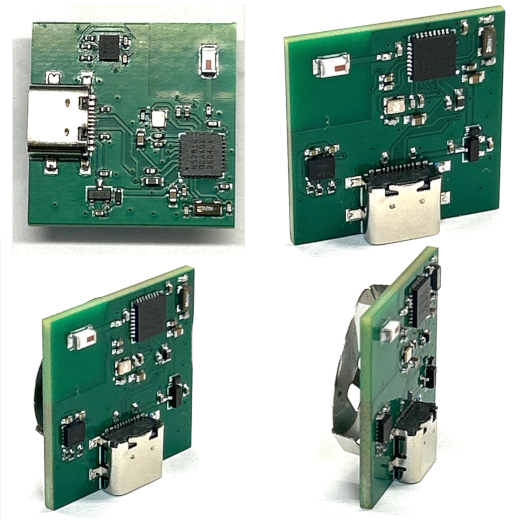
// Step counter. The motion sensor spots your steps. The numbers go to your phone by Bluetooth.
// Open LightBlue, connect to CyborgCore, and watch "steps" and "spm" (steps per minute) change.
// Tap the board on a table, or shake it, to make steps. Or clip it to a shoe and walk.

#define PIN_SDA  25   // P0.25
#define PIN_SCL  28   // P0.28
#define BMI_ADDR 0x68
#define LED_PIN  6    // blinks fast if Bluetooth fails to start
#define APP_RAM  0x20002800UL                 // must match the linker script RAM start

static uint8_t  adv_handle  = BLE_GAP_ADV_SET_HANDLE_NOT_SET;
static uint16_t conn_handle = BLE_CONN_HANDLE_INVALID;
static uint16_t rsc_svc = 0, txt_svc = 0;
static ble_gatts_char_handles_t rsc_meas_h, rsc_feat_h, text_h;
static uint8_t  adv_buf[]  = {0x02, 0x01, 0x06, 0x0B, 0x09, 'C','y','b','o','r','g','C','o','r','e'};
static uint8_t  scan_buf[] = {0x03, 0x03, 0x14, 0x18};   // lists the Running Speed and Cadence ID
static ble_gap_adv_data_t adv_data;
static uint8_t  evt_buf[128] __attribute__((aligned(4)));
static bool     imu_ok = false;
static const char *imu_msg = "no sensor";

static inline void sda_hi() { pinMode(PIN_SDA, INPUT); }
static inline void sda_lo() { digitalWrite(PIN_SDA, LOW); pinMode(PIN_SDA, OUTPUT); }
static inline void scl_hi() { pinMode(PIN_SCL, INPUT); }
static inline void scl_lo() { digitalWrite(PIN_SCL, LOW); pinMode(PIN_SCL, OUTPUT); }
static inline void dly()    { delayMicroseconds(10); }

static void i2c_start() { sda_hi(); scl_hi(); dly(); sda_lo(); dly(); scl_lo(); dly(); }
static void i2c_stop()  { sda_lo(); dly(); scl_hi(); dly(); sda_hi(); dly(); }

static bool i2c_write(uint8_t b) {
  for (int i = 7; i >= 0; i--) {
    if (b & (1 << i)) sda_hi(); else sda_lo();
    dly(); scl_hi(); dly(); scl_lo(); dly();
  }
  sda_hi(); dly(); scl_hi(); dly();
  bool ack = (digitalRead(PIN_SDA) == LOW);
  scl_lo(); dly();
  return ack;
}

static uint8_t i2c_read(bool ack) {
  uint8_t v = 0;
  sda_hi();
  for (int i = 0; i < 8; i++) {
    dly(); scl_hi(); dly();
    v = (v << 1) | (digitalRead(PIN_SDA) ? 1 : 0);
    scl_lo();
  }
  if (ack) sda_lo(); else sda_hi();
  dly(); scl_hi(); dly(); scl_lo(); dly(); sda_hi();
  return v;
}

static bool write_reg(uint8_t reg, uint8_t val) {
  i2c_start();
  bool ok = i2c_write(BMI_ADDR << 1) && i2c_write(reg) && i2c_write(val);
  i2c_stop();
  return ok;
}

static bool write_burst(uint8_t reg, const uint8_t *data, uint16_t n) {
  i2c_start();
  bool ok = i2c_write(BMI_ADDR << 1) && i2c_write(reg);
  for (uint16_t i = 0; ok && i < n; i++) ok = i2c_write(data[i]);
  i2c_stop();
  return ok;
}

static uint32_t read_regs(uint8_t reg, uint8_t *out, uint8_t n) {
  i2c_start();
  if (!i2c_write(BMI_ADDR << 1))       { i2c_stop(); return 1; }
  if (!i2c_write(reg))                 { i2c_stop(); return 2; }
  i2c_start();
  if (!i2c_write((BMI_ADDR << 1) | 1)) { i2c_stop(); return 3; }
  for (uint8_t i = 0; i < n; i++) out[i] = i2c_read(i < n - 1);
  i2c_stop();
  return 0;
}

static bool load_config() {
  const uint16_t total = sizeof(bmi270_config_file);
  for (uint16_t index = 0; index < total; ) {
    uint16_t n = total - index;
    if (n > 32) n = 32;
    uint8_t addr[2];
    addr[0] = (uint8_t)((index / 2) & 0x0F);       // low 4 bits of the word address
    addr[1] = (uint8_t)((index / 2) >> 4);         // upper bits
    if (!write_burst(0x5B, addr, 2)) return false;                       // INIT_ADDR_0/1
    if (!write_burst(0x5E, bmi270_config_file + index, n)) return false; // INIT_DATA
    index += n;
  }
  return true;
}


static void spin(volatile uint32_t n) { while (n--) { __asm__ volatile("nop"); } }

static void check(uint32_t err) {
  if (err != NRF_SUCCESS) {
    bool led = false;
    for (;;) { led = !led; digitalWrite(LED_PIN, led); spin(40000); }
  }
}

extern "C" void sd_fault(uint32_t id, uint32_t pc, uint32_t info) {
  for (;;) {}
}

static void start_adv() {
  check(sd_ble_gap_adv_start(adv_handle, BLE_CONN_CFG_TAG_DEFAULT));
}

// Start the BMI270 accelerometer: +/-8 g range (4096 per g), 100 readings a second.
static void imu_start() {
  uint8_t b = 0;
  write_reg(0x7E, 0xB6);                       // soft reset
  delay(5);
  read_regs(0x00, &b, 1);                      // chip ID, should be 0x24
  if (b != 0x24) { imu_msg = "no sensor"; return; }
  write_reg(0x7C, 0x00);        delay(1);      // PWR_CONF: advanced power save off
  write_reg(0x59, 0x00);                       // INIT_CTRL: disable config loading
  if (!load_config()) { imu_msg = "load failed"; return; }
  write_reg(0x59, 0x01);                       // INIT_CTRL: start the sensor
  for (int i = 0; i < 10; i++) {               // wait for init (about 20 ms)
    delay(20);
    read_regs(0x21, &b, 1);
    if ((b & 0x0F) == 0x01) break;
  }
  if ((b & 0x0F) != 0x01) { imu_msg = "init failed"; return; }
  write_reg(0x7C, 0x02);        delay(1);      // PWR_CONF: adv power save off, fifo wakeup
  write_reg(0x7D, 0x04);        delay(1);      // PWR_CTRL: accelerometer on
  write_reg(0x40, 0xA8);                       // ACC_CONF: 100 Hz, normal mode
  write_reg(0x41, 0x02);                       // ACC_RANGE: +/-8 g
  delay(50);
  imu_ok = true;
}

// ---- Step detector -------------------------------------------------------------
// A step shows up as a quick bump in the total pull on the sensor.
// 4096 = 1 g. We watch how far the total pull rises above its slow average (gravity).
#define STEP_BUMP     1500     // how big a bump counts as a step (about 0.37 g)
#define STEP_GAP_MS   250      // two steps can not be closer than this (fastest is 240 a minute)

static uint32_t isqrt32(uint32_t n) {
  uint32_t r = 0, bit = 1UL << 30;
  while (bit > n) bit >>= 2;
  while (bit) {
    if (n >= r + bit) { n -= r + bit; r = (r >> 1) + bit; } else { r >>= 1; }
    bit >>= 2;
  }
  return r;
}

static uint32_t step_count = 0;
static uint32_t step_times[6];            // when the last 6 steps happened
static int32_t  pull_avg   = 4096;        // slow average of the total pull = gravity
static bool     step_ready = true;

static void step_update(int x, int y, int z, uint32_t now) {
  uint32_t sq = (uint32_t)((int32_t)x * x) + (uint32_t)((int32_t)y * y) + (uint32_t)((int32_t)z * z);
  int32_t pull = (int32_t)isqrt32(sq);
  pull_avg += (pull - pull_avg) / 16;
  int32_t bump = pull - pull_avg;
  if (bump < STEP_BUMP / 2) step_ready = true;
  if (bump > STEP_BUMP && step_ready &&
      (step_count == 0 || now - step_times[5] >= STEP_GAP_MS)) {
    step_ready = false;
    for (int i = 0; i < 5; i++) step_times[i] = step_times[i + 1];
    step_times[5] = now;
    step_count++;
  }
}

// Steps per minute from the last few steps. 0 if you stopped or just started.
static int steps_per_minute(uint32_t now) {
  uint32_t n = step_count < 6 ? step_count : 6;
  if (n < 3 || now - step_times[5] > 2500) return 0;
  uint32_t span = step_times[5] - step_times[6 - n];
  if (span == 0) return 0;
  return (int)((60000UL * (n - 1) + span / 2) / span);
}

// Write a whole number into text, like -35 or 100. Returns the new end of the text.
static char *put_num(char *p, int v) {
  if (v < 0) { *p++ = '-'; v = -v; }
  char t[6]; int n = 0;
  do { t[n++] = '0' + (v % 10); v /= 10; } while (v > 0 && n < 5);
  while (n > 0) *p++ = t[--n];
  return p;
}

static char *put_text(char *p, const char *s) { while (*s) *p++ = *s++; return p; }

static void notify(uint16_t value_handle, uint8_t *data, uint16_t len) {
  ble_gatts_hvx_params_t hvx;
  memset(&hvx, 0, sizeof(hvx));
  hvx.handle = value_handle;
  hvx.type   = BLE_GATT_HVX_NOTIFICATION;
  hvx.p_len  = &len;
  hvx.p_data = data;
  sd_ble_gatts_hvx(conn_handle, &hvx);
}

// Words for the phone: "steps=12 spm=104"
static void send_text(uint32_t now) {
  char msg[20];
  char *p = msg;
  if (imu_ok) {
    p = put_text(p, "steps=");  p = put_num(p, (int)(step_count % 100000UL));
    p = put_text(p, " spm=");   p = put_num(p, steps_per_minute(now));
  } else {
    p = put_text(p, imu_msg);
  }
  notify(text_h.value_handle, (uint8_t *)msg, p - msg);
}

// The standard Running Speed and Cadence message, for watches and running apps
static void send_rsc(uint32_t now) {
  if (!imu_ok) return;
  uint8_t data[4] = {0x04, 0, 0, (uint8_t)steps_per_minute(now)};   // flags, speed (not measured), cadence
  notify(rsc_meas_h.value_handle, data, sizeof(data));
}

static void add_char(uint16_t svc, uint16_t uuid16, bool notify, uint8_t *init, uint8_t len,
                     ble_gatts_char_handles_t *h) {
  ble_uuid_t u;
  BLE_UUID_BLE_ASSIGN(u, uuid16);

  ble_gatts_char_md_t cm;
  memset(&cm, 0, sizeof(cm));
  ble_gatts_attr_md_t cccd;
  memset(&cccd, 0, sizeof(cccd));
  ble_gatts_attr_md_t am;
  memset(&am, 0, sizeof(am));

  if (notify) {
    cm.char_props.notify = 1;
    BLE_GAP_CONN_SEC_MODE_SET_OPEN(&cccd.read_perm);
    BLE_GAP_CONN_SEC_MODE_SET_OPEN(&cccd.write_perm);
    cccd.vloc = BLE_GATTS_VLOC_STACK;
    cm.p_cccd_md = &cccd;
    BLE_GAP_CONN_SEC_MODE_SET_NO_ACCESS(&am.read_perm);
  } else {
    cm.char_props.read = 1;
    BLE_GAP_CONN_SEC_MODE_SET_OPEN(&am.read_perm);
  }
  BLE_GAP_CONN_SEC_MODE_SET_NO_ACCESS(&am.write_perm);
  am.vloc = BLE_GATTS_VLOC_STACK;

  ble_gatts_attr_t at;
  memset(&at, 0, sizeof(at));
  at.p_uuid    = &u;
  at.p_attr_md = &am;
  at.init_len  = len;
  at.max_len   = len;
  at.p_value   = init;
  check(sd_ble_gatts_characteristic_add(svc, &cm, &at, h));
}

static void add_services() {
  // Running Speed and Cadence (0x1814), the standard service for foot pods
  ble_uuid_t ru;
  BLE_UUID_BLE_ASSIGN(ru, 0x1814);
  check(sd_ble_gatts_service_add(BLE_GATTS_SRVC_TYPE_PRIMARY, &ru, &rsc_svc));
  uint8_t feat_val[2] = {0x04, 0x00};
  add_char(rsc_svc, 0x2A54, false, feat_val, 2, &rsc_feat_h);
  uint8_t meas_val[4] = {0x04, 0x00, 0x00, 0x00};
  add_char(rsc_svc, 0x2A53, true, meas_val, 4, &rsc_meas_h);

  // Our own service that sends plain words
  ble_uuid128_t base = {{0x00,0x00,0x0C,0x0B,0x0C,0xCE,0x11,0x9A,0x0B,0x4B,0x0E,0x5C,0x00,0x00,0x3A,0x7F}};
  uint8_t type;
  check(sd_ble_uuid_vs_add(&base, &type));
  ble_uuid_t su;  su.uuid = 0x0001; su.type = type;
  check(sd_ble_gatts_service_add(BLE_GATTS_SRVC_TYPE_PRIMARY, &su, &txt_svc));

  ble_uuid_t cu;  cu.uuid = 0x0002; cu.type = type;
  ble_gatts_char_md_t cm;   memset(&cm, 0, sizeof(cm));
  ble_gatts_attr_md_t cccd; memset(&cccd, 0, sizeof(cccd));
  ble_gatts_attr_md_t am;   memset(&am, 0, sizeof(am));
  cm.char_props.notify = 1;
  BLE_GAP_CONN_SEC_MODE_SET_OPEN(&cccd.read_perm);
  BLE_GAP_CONN_SEC_MODE_SET_OPEN(&cccd.write_perm);
  cccd.vloc = BLE_GATTS_VLOC_STACK;
  cm.p_cccd_md = &cccd;
  BLE_GAP_CONN_SEC_MODE_SET_NO_ACCESS(&am.read_perm);
  BLE_GAP_CONN_SEC_MODE_SET_NO_ACCESS(&am.write_perm);
  am.vloc = BLE_GATTS_VLOC_STACK;
  am.vlen = 1;                                   // the text length changes
  uint8_t first[1] = {'-'};
  ble_gatts_attr_t at;      memset(&at, 0, sizeof(at));
  at.p_uuid    = &cu;
  at.p_attr_md = &am;
  at.init_len  = 1;
  at.max_len   = 20;
  at.p_value   = first;
  check(sd_ble_gatts_characteristic_add(txt_svc, &cm, &at, &text_h));
}

static void handle_evt(ble_evt_t *ev) {
  switch (ev->header.evt_id) {
    case BLE_GAP_EVT_CONNECTED:
      conn_handle = ev->evt.gap_evt.conn_handle;
      break;
    case BLE_GAP_EVT_DISCONNECTED:
      conn_handle = BLE_CONN_HANDLE_INVALID;
      start_adv();
      break;
    case BLE_GAP_EVT_PHY_UPDATE_REQUEST: {
      ble_gap_phys_t ph;
      ph.tx_phys = BLE_GAP_PHY_AUTO;
      ph.rx_phys = BLE_GAP_PHY_AUTO;
      sd_ble_gap_phy_update(ev->evt.gap_evt.conn_handle, &ph);
      break;
    }
    case BLE_GAP_EVT_SEC_PARAMS_REQUEST:
      sd_ble_gap_sec_params_reply(ev->evt.gap_evt.conn_handle,
                                  BLE_GAP_SEC_STATUS_PAIRING_NOT_SUPP, NULL, NULL);
      break;
    case BLE_GATTS_EVT_EXCHANGE_MTU_REQUEST:
      sd_ble_gatts_exchange_mtu_reply(ev->evt.gatts_evt.conn_handle, BLE_GATT_ATT_MTU_DEFAULT);
      break;
    case BLE_GATTS_EVT_SYS_ATTR_MISSING:
      sd_ble_gatts_sys_attr_set(ev->evt.gatts_evt.conn_handle, NULL, 0, 0);
      break;
    default:
      break;
  }
}

void setup() {
  pinMode(LED_PIN, OUTPUT);

  imu_start();                                   // takes about 3 seconds the first time

  nrf_clock_lf_cfg_t lf;
  memset(&lf, 0, sizeof(lf));
  lf.source   = NRF_CLOCK_LF_SRC_XTAL;
  lf.accuracy = NRF_CLOCK_LF_ACCURACY_50_PPM;
  check(sd_softdevice_enable(&lf, sd_fault));

  uint32_t ram = APP_RAM;
  check(sd_ble_enable(&ram));

  ble_gap_conn_sec_mode_t sec;
  BLE_GAP_CONN_SEC_MODE_SET_OPEN(&sec);
  check(sd_ble_gap_device_name_set(&sec, (const uint8_t *)"CyborgCore", 10));

  add_services();

  memset(&adv_data, 0, sizeof(adv_data));
  adv_data.adv_data.p_data      = adv_buf;
  adv_data.adv_data.len         = sizeof(adv_buf);
  adv_data.scan_rsp_data.p_data = scan_buf;
  adv_data.scan_rsp_data.len    = sizeof(scan_buf);

  ble_gap_adv_params_t p;
  memset(&p, 0, sizeof(p));
  p.properties.type = BLE_GAP_ADV_TYPE_CONNECTABLE_SCANNABLE_UNDIRECTED;
  p.filter_policy   = BLE_GAP_ADV_FP_ANY;
  p.interval        = 160;                       // 100 ms
  p.duration        = 0;                         // advertise forever
  p.primary_phy     = BLE_GAP_PHY_1MBPS;
  check(sd_ble_gap_adv_set_configure(&adv_handle, &adv_data, &p));
  start_adv();
}

void loop() {
  uint16_t len = sizeof(evt_buf);
  if (sd_ble_evt_get(evt_buf, &len) == NRF_SUCCESS) {
    handle_evt((ble_evt_t *)evt_buf);
  }
  uint32_t soc;
  while (sd_evt_get(&soc) == NRF_SUCCESS) {}

  uint32_t now = millis();

  // look at the sensor 50 times a second
  static uint32_t last_look = 0;
  if (imu_ok && now - last_look >= 20) {
    last_look = now;
    uint8_t d[6];
    if (read_regs(0x0C, d, 6) == 0) {
      step_update((int16_t)((d[1] << 8) | d[0]),
                  (int16_t)((d[3] << 8) | d[2]),
                  (int16_t)((d[5] << 8) | d[4]), now);
    }
  }

  // tell the phone twice a second
  static uint32_t last_send = 0;
  static bool odd = false;
  if (conn_handle != BLE_CONN_HANDLE_INVALID && now - last_send >= 500) {
    last_send = now;
    send_text(now);
    if (odd) send_rsc(now);
    odd = !odd;
  }
}